Fixing Cloudflare WARP Error CF_FAILED_TO_SET_MTLS in Posture Only Mode
If you are trying to run the Cloudflare One Client (formerly WARP) in Posture only mode and keep getting the following error, this post may save you some troubleshooting time: CF_FAILED_TO_SET_MTLS
I ran into this while trying to build what should have been a fairly simple Cloudflare Zero Trust configuration.
The requirements were:
- Enroll corporate devices into Cloudflare Zero Trust.
- Use an Access token-based onboarding flow.
- Collect device posture information such as disk encryption, firewall status, OS information, and other endpoint signals.
- Use those posture signals in Cloudflare Access policies.
- Do not route normal user Internet traffic through Cloudflare.
Cloudflare’s Posture only mode is designed for exactly this type of scenario. In older Cloudflare terminology, you may also see this referred to as Device Information Only. You can find the current Cloudflare client mode documentation here: Cloudflare One Client modes
However, after completing device enrollment, the client kept failing with: CF_FAILED_TO_SET_MTLSThe confusing part was that I had not configured mTLS authentication for my applications. So why was an mTLS-related error preventing the client from working?
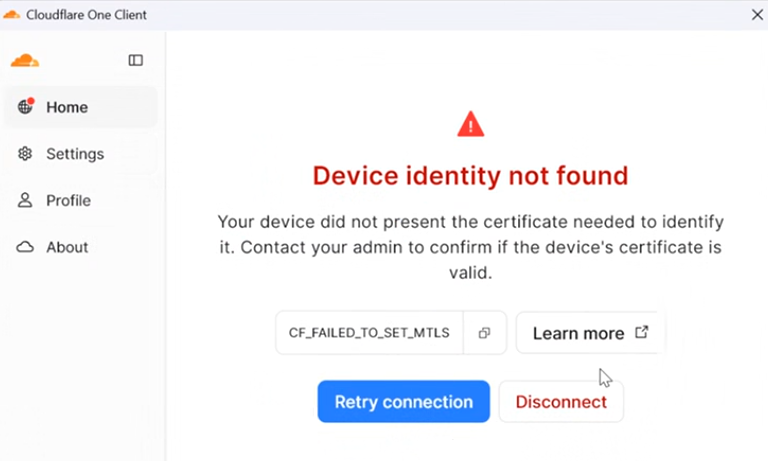
The Problem: Device Certificate Provisioning
In this particular configuration, the problem was not application-level mTLS authentication. It was device certificate provisioning.
Cloudflare supports provisioning an X.509 certificate to Zero Trust clients so that the certificate can be referenced by Access device posture policies. Importantly, Cloudflare explicitly documents that this mechanism can be used to provide device posture functionality without requiring a WARP traffic session.The relevant Cloudflare API documentation is here: Cloudflare API — Update device certificate provisioning status
Once I enabled device certificate provisioning for the zone, Posture only mode started working correctly. There are two ways to approach the problem, depending on whether you specifically want to use Posture only mode or are comfortable using a WARP tunnel with traffic exclusions.
Option 1: Enable Device Certificate Provisioning via the Cloudflare API
This is the cleaner solution if your goal is specifically:
- Collect device posture.
- Keep the endpoint registered with Cloudflare Zero Trust.
- Use posture information in Access policies.
- Avoid routing normal user traffic through WARP.
Cloudflare exposes the following API endpoint:
PATCH /zones/{zone_id}/devices/policy/certificatesThe API enables certificate provisioning at the zone level.
1. Create a Cloudflare API Token
Go to:
Cloudflare Dashboard → My Profile → API Tokens → Create Token
Create a custom API token with:
- Zone → SSL and Certificates → Edit
Scope the token to the zone used by your Zero Trust configuration.
Cloudflare’s API documentation lists SSL and Certificates Write as the required permission for updating device certificate provisioning.
Cloudflare’s guide for creating API tokens is available here: Cloudflare — Create API Token
Important: do not confuse a Cloudflare Access Service Token with a Cloudflare API Token.
Access Service Tokens are used for authenticating applications or services against Cloudflare Access. They are not a replacement for an administrative Cloudflare API token.
2. Find Your Zone ID
You will need the Cloudflare Zone ID for the domain associated with the configuration.
You can find the Zone ID in the Cloudflare dashboard on the domain’s overview page.
3. Check the Current Certificate Provisioning Status
Before changing anything, you can check whether certificate provisioning is already enabled.
curl "https://api.cloudflare.com/client/v4/zones/YOUR_ZONE_ID/devices/policy/certificates" \
  --header "Authorization: Bearer YOUR_CLOUDFLARE_API_TOKEN"
The official API documentation for this GET request is available here: Cloudflare API — Get device certificate provisioning status
If certificate provisioning is disabled, you should see something equivalent to:
{
  "result": {
    "enabled": false
  },
  "success": true,
  "errors": [],
  "messages": []
}
4. Enable Device Certificate Provisioning
On Linux or macOS:
curl "https://api.cloudflare.com/client/v4/zones/YOUR_ZONE_ID/devices/policy/certificates" \
  --request PATCH \
  --header "Authorization: Bearer YOUR_CLOUDFLARE_API_TOKEN" \
  --header "Content-Type: application/json" \
  --data '{"enabled":true}'
Replace:
YOUR_ZONE_IDwith your Cloudflare Zone ID.YOUR_CLOUDFLARE_API_TOKENwith the API token created earlier.
Windows Command Prompt
If you are running the command from the traditional Windows Command Prompt, be careful with JSON quoting.
Single quotes do not behave the same way as they do in Bash. Use escaped double quotes:
curl "https://api.cloudflare.com/client/v4/zones/YOUR_ZONE_ID/devices/policy/certificates" --request PATCH --header "Authorization: Bearer YOUR_CLOUDFLARE_API_TOKEN" --header "Content-Type: application/json" --data "{\"enabled\":true}"A successful response should look similar to:
{
  "result": {
    "enabled": true
  },
  "success": true,
  "errors": [],
  "messages": []
}
This is a zone-level configuration, so you do not need to execute the request separately for every endpoint.
Option 2: Use WARP with Split Tunnels Excluding User Traffic
There is another workaround if you do not want to use Posture only mode.
You can allow the Cloudflare One Client to operate in its normal tunnel mode but configure Split Tunnels so that normal endpoint IP traffic bypasses WARP.
In other words:
- The Cloudflare client remains registered and establishes its normal control-plane connectivity.
- Device posture continues to work.
- Normal user IP traffic is excluded from the WARP tunnel.
Cloudflare documents Split Tunnels here: Cloudflare One Client — Split Tunnels
Configure the Device Profile
- Open the Cloudflare Zero Trust dashboard.
- Go to Team & Resources → Devices → Device profiles → General profiles.
- Select the profile assigned to your endpoints.
- Configure the Cloudflare One Client to use a traffic/tunnel mode rather than Posture only.
- Open Split Tunnels.
- Select Exclude IPs and domains.
- Add the following routes:
0.0.0.0/0
::/0
These two CIDR ranges represent:
0.0.0.0/0— all IPv4 destinations.::/0— all IPv6 destinations.
With those routes excluded, normal IPv4 and IPv6 traffic bypasses the WARP tunnel.
Important: Split Tunnels Do Not Automatically Exclude DNS
This is an important detail that is easy to miss.
Cloudflare’s Split Tunnels configuration controls IP traffic. It does not automatically stop the Cloudflare One Client from handling DNS.
Cloudflare specifically notes in its documentation that DNS requests can still be resolved by Gateway and remain subject to Gateway DNS policies even when the corresponding IP traffic is excluded through Split Tunnels.
See: Cloudflare Split Tunnels — DNS behavior
This means that configuring:
0.0.0.0/0
::/0
does not necessarily mean that no user traffic is processed by Cloudflare.
If the client is operating in Traffic and DNS mode, DNS requests can still be sent to Cloudflare Gateway.
If You Do Not Want Cloudflare to Handle DNS
If you use the Split Tunnel workaround and also want DNS to remain completely outside Cloudflare, consider using Traffic only mode rather than Traffic and DNS mode.
Cloudflare’s current client modes are documented here: Cloudflare One Client — Client modes
Cloudflare describes the relevant modes as:
- Traffic and DNS — sends both IP traffic and DNS through the Cloudflare One Client.
- Traffic only — handles IP traffic but leaves DNS resolution outside the Cloudflare client.
- Posture only — does not perform DNS, network, or HTTP filtering and is intended for device posture use cases.
If your requirement is genuinely posture collection only, enabling certificate provisioning and using Posture only mode remains the cleaner architecture.
Clear the Existing Client Registration
If the endpoint has already been failing with CF_FAILED_TO_SET_MTLS, I recommend clearing the existing registration before testing again.
You can do this through the Cloudflare One Client interface by logging out of the Zero Trust organization and enrolling again.
Alternatively, the Cloudflare CLI provides a reliable way to remove the existing local registration:
warp-cli registration deleteThis clears the local Cloudflare One Client registration and policy state.
Cloudflare also documents client registration and reset behavior here: Cloudflare Zero Trust — Device registration
You can then enroll the endpoint again.
For manual enrollment, Cloudflare documents the process here: Cloudflare One Client — Manual deployment and registration
From the CLI, enrollment can also be started with:
warp-cli registration new YOUR_TEAM_NAMEAfter authentication, verify the registration with:
warp-cli registration showVerify That the Fix Worked
After reenrolling the device, verify the complete flow rather than relying only on the WARP client status indicator.
1. Check Device Registration
In Cloudflare Zero Trust, go to:
Team & Resources → Devices
Confirm that the device appears and has an active registration.
Cloudflare explains device registrations in more detail here: Cloudflare Zero Trust — Device registration
2. Check Device Posture
Confirm that the expected device posture signals are being reported, for example:
- Disk encryption status.
- Firewall status.
- Operating system version.
- Running processes.
- Installed applications.
- Endpoint management or EDR integrations.
Cloudflare’s device posture documentation is available here:Cloudflare Zero Trust — Device posture
3. Check the Certificate on Windows
If you enabled device certificate provisioning, you can also inspect the Windows Local Computer certificate store:
certlm.mscLook for the device identity certificate provisioned as part of the Cloudflare Zero Trust registration process.
4. Verify Traffic Routing
If you used the Split Tunnel workaround, verify that normal Internet traffic is actually bypassing WARP.
Do not assume that the configuration is working simply because the client shows as connected.
Check:
- External source IP.
- Routing table.
- Cloudflare Gateway logs.
- DNS resolution path.
- Network and HTTP Gateway events.
Remember to validate DNS separately from IP routing.
Final Configuration
For my use case, the desired architecture was:
Endpoint
   |
   |-- Cloudflare One Client
   |      |
   |      +-- Device registration
   |      +-- Device posture
   |      +-- Device certificate
   |
   +-- Normal Internet traffic --------> Local Internet connection
No Secure Web Gateway routing was required. I only needed Cloudflare to know the identity and security posture of the endpoint so that those signals could be used when evaluating Access policies.
For that scenario, the solution was to:
- Keep the client in Posture only mode.
- Enable Cloudflare device certificate provisioning for the zone.
- Clear the failed local device registration.
- Enroll the endpoint again.
After doing this, the CF_FAILED_TO_SET_MTLS error disappeared and posture reporting worked without routing normal endpoint Internet traffic through WARP.
Conclusion
CF_FAILED_TO_SET_MTLS is a confusing error when you are not intentionally deploying mTLS authentication.
In a Posture only deployment, however, mTLS can appear because Cloudflare uses device certificates as part of device identity and posture functionality.
If you encounter this error while trying to run the Cloudflare One Client purely for posture collection, check the device certificate provisioning setting before spending time troubleshooting Access application mTLS policies.
The relevant API is:
PATCH https://api.cloudflare.com/client/v4/zones/{zone_id}/devices/policy/certificates

{
  "enabled": true
}
For a posture-only architecture, this is considerably cleaner than establishing a full WARP traffic configuration and then attempting to exclude everything through Split Tunnels.